Answering the search for easy, Mac-friendly 35mm scanners, this guide highlights five reliable options that excel at converting film negatives and slides into high-quality digital images. Best for hobbyists, casual archivists, and family historians, these scanners offer standalone use or simple USB connectivity with Mac computers. Below, each pick is explained with who it best serves, why it was chosen, and any notable limitations to consider. A quick buying table helps compare core strengths at a glance.
| Product | Why It Stands Out | Best For |
|---|---|---|
| Magnasonic All-in-One 24MP FS71 | Large 5″ display, built-in memory, multiple film formats | Multi-format archives, easy direct viewing |
| DigitPro Photo Scanner with 5” Screen | Standalone unit, simple one-touch operation, TV-out | Non-PC digitizing for old photos and negatives |
| DigitPro 2.4” LCD 35mm Scanner | Fast slide feeder, compact, USB transfer | Large collections, quick batch work |
| KODAK SCANZA Digital Film & Slide Scanner | 3.5″ LCD, full set of adapters, easy-one-button scanning | All-in-one convenience for mixed media |
| Pacific Image PowerSlide X Plus | Auto batch scanning, 10,000 dpi true color | Large slide libraries, batch efficiency |
Magnasonic All-in-One FS71 24MP Film Scanner

The Magnasonic FS71 is a versatile, all-in-one film scanner that supports 35mm, 110, 126, and Super 8 film, as well as 135/126/110 slides. It saves digital JPEGs at high resolution and includes a 128MB internal memory plus an SD card slot for up to 128GB. This model is best for scrapbookers and hobbyists who want to digitize diverse film formats without a computer. A potential limitation is the need for HDMI viewing to maximize screen use, which may require extra cables.
DigitPro Photo Scanner With 5” Screen
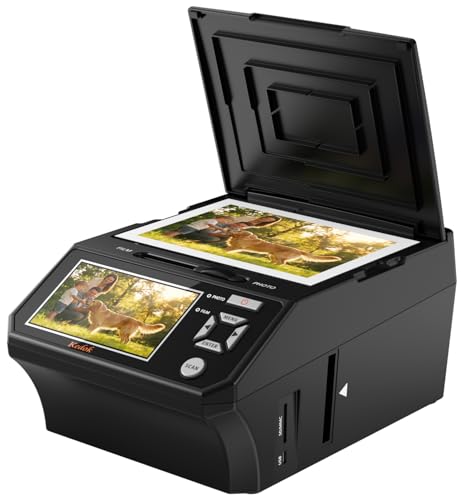
The DigitPro 5″ screen model is a standalone photo and film scanner designed for easy, family-friendly digitizing of 35mm slides, 135 and 110 negatives, and printed photos up to 3R/4R. It emphasizes a straightforward “One-Touch” workflow and a large LCD for immediate viewing. It is best for those who want a simple, computer-free experience. A minor limitation is the absence of extensive color management controls for advanced users.
DigitPro 2.4” LCD 35mm Film & Slide Scanner

This 2.4″ LCD scanner is built for standalone operation, converting 135 negatives and slides to JPEG with quick loading and a TV-out option for bigger viewing. It supports positive, negative, and black-and-white modes, making it a strong choice for archiving large mid-size collections. Choose this if you want a compact, easy-to-use device that can quickly process many frames, but be aware of its smaller screen size for precise editing on-device.
KODAK SCANZA Digital Film & Slide Scanner
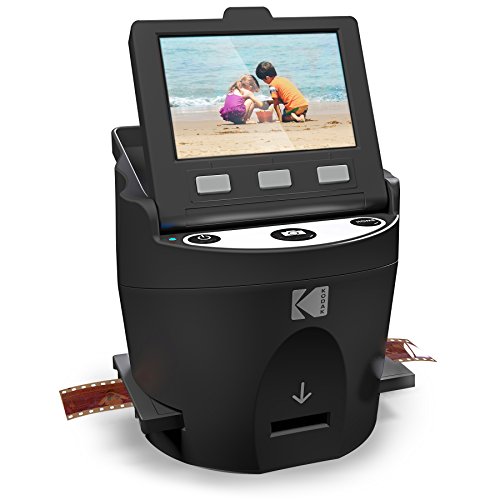
The Kodak Scanza is a popular all-in-one option with a 3.5″ LCD and a broad range of film inserts and adapters. It converts 35mm, 126, 110, Super 8, and 8mm negatives and slides to JPEG. It is best for users seeking a single device with broad format compatibility and quick, intuitive one-button scanning. A limitation to note is that the supported file format is primarily JPEG, which may require later editing elsewhere for more advanced workflows.
Pacific Image PowerSlide X Plus 35mm Slide Scanner

The PowerSlide X Plus offers auto batch scanning for up to 50 slides per batch and a true color 10,000 dpi scan capability. It uses a user-friendly one-button interface and is designed for faster processing of large slide collections. It is best for archivers who need high-volume throughput and consistent color accuracy. A potential drawback is its higher price and bulkier footprint compared with smaller, standalone scanners.
Plustek OpticFilm 8200i SE

The Plustek OpticFilm 8200i SE is a dedicated 35mm film and slide scanner offering 7200 dpi resolution with 48-bit output. It includes infrared dust and scratch removal and bundles SilverFast SE Plus 9 for enhanced processing. It suits serious archivists and photographers who require high-resolution scans with robust dust removal. A caveat is that it is a computer-reliant workflow, typically requiring a Mac or PC with software support for full benefits.
Buying Guide: Key Considerations For Choosing A 35mm Scanner For Mac
Standalone vs. computer-connected: Standalone units are PC-free and often easier for beginners, while connected scanners can deliver higher control and flexibility on Mac.
Resolution and color accuracy: Look for at least 7200 dpi for 35mm film and true color or 10,000 dpi options for large batches. Infrared dust/scratch removal helps maintain quality over time.
Media compatibility: Ensure the scanner supports 35mm negatives, slides, and other formats you own. If you have Super 8 or 8mm, verify adapters are included or available.
Viewing and transfer: Large built-in displays simplify on-device viewing. TV-out or HDMI can help when using a larger screen for detailed checks, especially on Mac setups.
Software and workflow: Some models bundle software (e.g., SilverFast) or offer easy transfer to Mac. Consider whether you need PC-free operation or advanced post-processing options on your computer.
Ease of use vs. quality: A higher-end model may deliver superior scans but at a steeper learning curve. For casual digitizing, a simpler device with reliable results is often preferable.
FAQ
- What is the easiest 35mm scanner to use with a Mac?
Standalone units with large displays and simple one-button controls are typically easiest for Mac users who want minimal setup.
- Do 35mm scanners support all slide formats?
Many units support 35mm slides and common negatives; verify specific format compatibility and included adapters before purchasing.
- Is infrared dust/scratch removal important?
Yes, it helps reduce visible defects in scans, especially for old film stocks, but it adds cost and sometimes processing time.
- Can I use these scanners without a PC?
Some models are standalone and do not require a computer, while others rely on Mac software for full functionality.
- What file format do these scanners usually export?
Most export JPEG images, with optional TIFF or RAW options on higher-end models or with bundled software.
- Are higher resolution scans always better?
Higher resolution captures more detail but results in larger file sizes and longer processing times; balance needs with storage and workflow.