Answer: If you want to convert 35mm slides and negatives into digital JPEGs without a computer, these four- to five- device options provide standalone scanning with built-in displays and quick feeders. Ideal buyers include seniors digitizing old memories, scrapbookers preserving family history, and hobbyists seeking simple, direct-to-device workflows. Below are five carefully selected 35mm-to-digital scanners that prioritize ease of use, decent image quality, and practical features for home archiving. The quick-reference buying table summarizes each model to help you compare at a glance.
| Product | Brand | Best For | Notes |
|---|---|---|---|
| 35mm Film & Slide Scanner with 2.4″ LCD Screen | DigitPro | Quick, standalone scanning | 2.4″ LCD; TV-out |
| Film and Slide Scanner – 22MP Capability | DigitPro | Creative editing on device | 5″ LCD; SD storage |
| DIGITNOW! 135 Film Negative Scanner | DIGITNOW | Simple, no-PC workflow | Adjustable feeder; SD save |
| 35mm Film Scanner & Slide Scanner with 2.4″ LCD | DigitConvert | Batch scanning with preview | Built-in LCD; SD card option |
| Mobile Film Scanner with Smartphone App | DigitConvert | On-the-go digitizing | App-based; battery included |
The following sections describe each product, highlighting who it is best for, why it was selected, and a practical caveat. Use these details to decide which model aligns with your archive goals and daily workflow.
35mm Film & Slide Scanner With 2.4″ LCD Screen

Best for: beginners who want a self-contained device for 135 negatives and slides. This scanner converts to JPEG without a computer and supports positive, negative, and black-and-white modes for straightforward archiving. The quick slide feeder enables faster processing of large vintage collections, making it a solid choice for hobbyists and seniors restoring old albums.
Why selected: It combines a 2.4″ LCD for on-device preview with a TV-out option for a larger viewing experience. The automatic feeder supports framed slides up to 2mm thick, which helps in batching long-running projects. A practical limitation is that higher-end color accuracy may be limited by the built-in display and noise reduction at lower light levels.
Film And Slide Scanner – 22MP Digital Photos

Best for: memory keepers who want a larger display and the ability to save directly to internal memory or an SD card. It supports color and black-and-white 35mm/135, 110, and 126 negatives, plus 50mm slides and Super 8 film, with a 5″ LCD for immediate review.
Why selected: The built-in 128MB memory and SD card support up to 64GB provide flexible storage for quick digitization sessions. The 5″ screen makes it easier to verify scans before saving. Caution: external storage capacity may limit long archival projects if not paired with a large SD card.
DIGITNOW! 135 Film Negative Scanner

Best for: users who want a standalone device with a reliable slide feeder and easy transfer to SD card. It’s suitable for those digitizing a moderate volume of negatives and slides with simple, direct-to-storage workflow.
Why selected: It includes an adjustable rapid slide feeder and supports 1800DPI high-resolution scans to an SD card (up to 32GB). A potential limitation is reliance on SD storage for archival quality, which may require higher-capacity cards for large collections.
35mm Film Scanner & Slide Scanner With 2.4″ LCD

Best for: archivers seeking a compact, all-in-one device with a built-in display for immediate editing. This model emphasizes a user-friendly, plug-and-play approach for 135 film and 35mm slides with easy-load adapters.
Why selected: The 2.4″ LCD preview and editing capability allow on-device color and brightness adjustments. It supports batch scanning and keeps the process simple—an advantage for seniors and casual users. Limitation: keeps the focus on simplicity, which may forgo advanced color management options found in PC-based workflows.
Mobile Film Scanner With Smartphone App

Best for: on-the-go digitizers who want to convert 35mm slides and negatives using a smartphone app. This is ideal for travelers or collectors who need a lightweight workflow without a fixed station.
Why selected: The accompanying app simplifies the digitization process, converting to JPEG via a connected phone. Batteries are included for immediate use. Caution: smartphone app performance may vary by device, and data transfer depends on app compatibility and phone settings.
DIGITNOW 35mm Slide And Film Viewer

Best for: individuals who want magnified viewing and LED illumination for 35mm slides and positive film negatives. This is a non-scanning option suitable for quick viewing and basic digitization planning.
Why selected: It provides 3x magnification with a bright backlit viewing area, aiding in selecting frames for later scanning. A limitation is that it does not include a built-in scanner, so it won’t directly convert to digital without an additional device.
Kodak SCANZA Digital Film & Slide Scanner
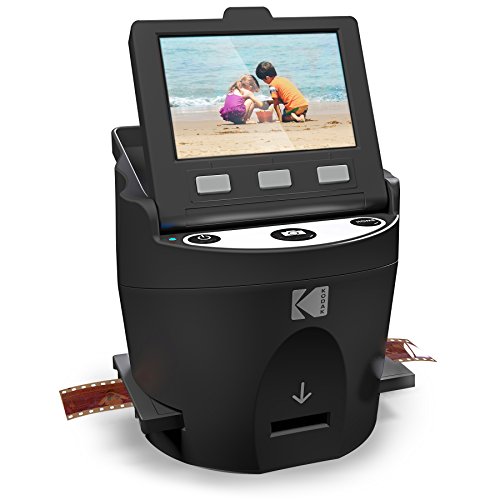
Best for: users who want a more complete insert-and-scan workflow for multiple film formats. It supports 35mm, 126, 110, Super 8, and 8mm negatives and slides with a large 3.5″ LCD for on-device viewing.
Why selected: The unit includes a variety of film inserts and adapters, enabling flexible operation. A caution is that Kodak notes limitations on formats beyond those listed; verify your film type before use to avoid compatibility issues.
DigitConvert 35mm Slide & Film Negatives Viewer

Best for: those who want high magnification and a simple plug-and-play design for 35mm slides and 2×2″ mounted slides. It is suitable for light archival tasks and quick viewing before deciding which frames to digitize.
Why selected: It offers 3x magnification with a premium viewing experience and universal compatibility for common slide formats. It can run on USB power or with four AA batteries, adding versatility. Limitation: rapid-eject functionality helps, but capacity is still bound to one slide at a time in some modes, which can slow large projects.
Buying Guide
Key considerations when choosing a 35mm slides to digital scanner:
- Standalone operation vs. PC-based: Do you want a device that scans without a computer, or are you comfortable using a PC to manage and edit scans?
- Display size and viewing: Larger built-in LCDs or TV-out can help you verify quality before saving. Consider whether you need on-device editing.
- Storage options: Look for SD card support, internal memory, or USB transfer. Larger storage is important for big archives.
- Film formats supported: Ensure the device supports 35mm/135, 126, 110, and slide formats you own, including mounted or unmounted slides.
- Feeder capacity: A fast feeder saves time; confirm compatibility with your slide thickness and framing.
- Resolution and image quality: Higher DPI yields crisper results; consider whether you need 1800DPI or better for future printing.
- Power options: Battery-powered vs. USB power affects portability. Decide which best matches your workflow.
- Ease of use: One-touch scanning and simple color/brightness adjustments are valuable for casual users and seniors.
- Future-proofing: Look for models with firmware updates or expandable storage to preserve long-term usefulness.
FAQ
- Do these scanners require a computer to work?
- Can I scan 35mm slides and negatives at once?
- What storage do I need for a large archive?
- Is higher DPI always better?
- Are there compatibility limits with mounted slides?
- Do these devices preserve color accurately?
Many listed models are standalone devices, designed to scan and save without a PC. Some offer PC or smartphone integration as an option for transfers or editing.
Several models include rapid feeders designed for continuous loading, but performance depends on slide thickness and format compatibility.
SD cards with 64GB or more are common. If a device supports USB transfers, you can move files to a larger drive or cloud storage later.
Higher DPI improves detail but increases file size and scanning time. For family photos intended for screen viewing, 1200–1800DPI is usually sufficient.
Some units handle mounted slides via specific adapters, but check the product’s listed compatibility to avoid jam issues during loading.
Built-in color management varies. For critical color work, prefer devices with adjustable brightness and color controls, and consider post-scan editing on a computer.