Answering the need for fast, reliable digitization of 35mm film and slides, these automated scanners are designed for different budgets and workflows. Ideal buyers include casual hobbyists digitizing family memories, serious enthusiasts building archives, and small studios needing repeatable results. This guide highlights five strong options and explains who each is best for, with practical comparisons to help you choose. A quick reference table follows to summarize key points at a glance.
| Product | Brand | Best For |
|---|---|---|
| KODAK Slide N SCAN Film & Slide Scanner | KODAK | All-in-one with LCD for immediate preview |
| 35mm Film & Slide Scanner with 2.4″ LCD | DigitPro | Compact, PC-free archiving |
| Plustek OpticFilm 9000i Ai | Plustek | Professional detail and dust removal |
| Film and Slide Scanner (5” LCD) | DigitPro | All-in-one with large display |
| Magnasonic All-in-One 24MP Scanner | Magnasonic | High-resolution output with built-in memory |
KODAK Slide N SCAN Film & Slide Scanner
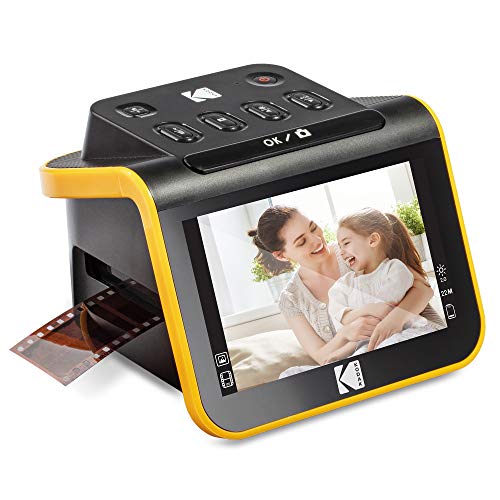
This device combines a 22MP scanning capability with a 5-inch LCD gallery display. It supports 135, 126, and 110 formats and can save files directly to an SD card. The built-in gallery mode makes it easy to preview and share memories without a computer. This model suits casual users who want an easy, all-in-one solution and a built-in screen for immediate viewing. A potential limitation is SD card storage depending on file size and capacity, and some users may want more advanced dust removal than basic cleaning brushes provide.
Best for: Families digitizing old slides and negatives at home, and hobbyists who value an integrated display for quick viewing and sharing.
Why selected: It offers an all-in-one experience with direct-to-SD saving and a bright 5” display for on-device review, making it a solid choice for simple archiving tasks.
Limitations to note: Not a standalone PC-free editor beyond basic gallery and quick edits; SD card capacity and transfer speeds depend on card type and device compatibility.
35mm Film & Slide Scanner with 2.4″ LCD Screen

This standalone scanner converts 135 negatives and slides into digital JPEGs without a computer. It supports color, negative, and black-and-white modes and offers an integrated 2.4″ LCD with TV-out sharing for bigger viewing. It’s suited for small collections where a PC-free workflow and immediate playback are priorities. A limitation is the smaller LCD size, which may affect precise color-edit work compared to larger displays.
Best for: Home archivists who want a compact, easy-to-use device with TV-out for larger viewing on a TV screen.
Why selected: The all-in-one design and flexible viewing options deliver straightforward digitization with minimal setup.
Caution: The smaller screen may limit color accuracy checks during editing; consider a model with a larger display if precise color work is needed.
Plustek OpticFilm 9000i Ai 35mm Film Scanner
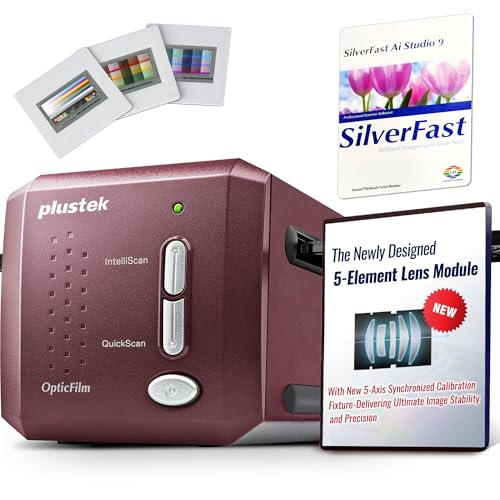
The 2026 flagship model emphasizes professional-grade detail with a 3rd-generation lens and 5-axis precision alignment. It improves infrared dust detection and supports faster scanning to boost workflow efficiency. This scanner is best for serious film digitizers, studios, or enthusiasts who require high reliability and restoration-friendly imaging. A potential drawback is a higher entry price and a steeper learning curve for optimal results.
Best for: Professional photographers and serious film collectors seeking top-notch detail and stable performance.
Why selected: It blends advanced optics, dust management, and reliable throughput for demanding digitization tasks.
Limitation: Higher cost and more involved setup than entry-level models; plan for a dedicated workflow space.
DigitPro Film and Slide Scanner – 22MP, 5” LCD

This all-in-one device digitizes 35mm, 126, and 110 films and slides, delivering up to 22MP digital files. A built-in 5″ LCD allows instant preview and editing, and the scanner supports saving to internal memory or an SD card. It emphasizes ease-of-use with one-touch scanning, making it suitable for beginners who want fast results without a computer. A limitation is that some advanced editing features may require external software for finer control.
Best for: Beginners who want a straightforward, on-device scanning flow with quick preview and basic editing.
Why selected: The one-touch workflow and large LCD support quick digitization of mixed media in one device.
Caution: External software may still be needed for refined color adjustments or batch processing beyond basic edits.
Magnasonic All-in-One 24MP Film Scanner

Magnasonic’s 24MP scanner offers a roomy 5″ display and HDMI output for viewing scans on a television. It includes built-in memory and supports SD cards up to 128GB, enabling substantial offline storage. This model is well-suited for users who want a high-resolution output and optional external display. A potential drawback is reliance on HDMI for big-screen viewing, which may require extra cables or equipment not always included.
Best for: Archivists who favor high-resolution scans and the ability to preview on a larger screen via HDMI.
Why selected: Combines high MP output with flexible viewing options and built-in memory for offline archiving.
Limitation: HDMI output requires compatible displays and cables; some users may prefer USB-only devices for portability.
Buying Guide
What to consider when choosing an automated 35mm slide scanner
- Display size and viewing options: Larger LCDs and TV-out can simplify editing and sharing, but may add cost.
- Film format support: Ensure the scanner accepts your slide types (35mm, 126, 110, Super 8) and color/B&W options.
- Storage and transfer: Look for built-in memory, SD card compatibility, and whether direct-to-SD saving is supported.
- Dust and scratch handling: Advanced infrared dust removal improves restoration; some models include additional cleaning accessories.
- Workflow needs: PC-free operation is ideal for quick archiving, while computer-connected models may offer more editing power.
- Display quality vs. portability: Large displays aid accuracy but reduce portability; foldable or compact designs favor travel use.
- Price vs. features: Higher-end models provide better optics and faster scanning but may exceed casual budgets.
How to maximize results with any slide scanner
- Clean slides and negatives before scanning to reduce dust on digital files.
- Scan at the highest available resolution for archival quality, then downscale for sharing.
- Back up digital files to multiple storage sources to prevent data loss.
- When color accuracy matters, perform post-scan adjustments using basic tools or dedicated software.
FAQ
- What is the easiest way to digitize old slides?
Choose a PC-free scanner with a large display and simple one-touch scanning for quick results.
- Do I need a computer to use these scanners?
Some models are standalone, but several perform best when connected to a computer for advanced editing.
- Can I share scans directly to a TV or social media?
Many scanners offer TV-out or built-in gallery modes to preview on a screen; saving to SD or internal memory supports sharing later.
- Which format should I choose for archiving?
Save high-resolution JPEGs or TIFFs if available, then organize files by date, event, or film stock for easy retrieval.
- Are infrared dust removal features worth it?
Yes, they help identify and reduce dust/debris during scanning, improving overall image quality.
- What should I expect from a 7-inch or larger display?
Larger displays provide better color checking and editing accuracy but increase device size and cost.