Answering a common buyer need, this guide highlights practical camcorder tape-to-digital options for converting old VHS, 8mm, Hi8, MiniDV, and Digital8 formats into accessible digital files. These picks suit different scenarios—from simple plug-and-play transfers to more versatile capture setups. Ideal buyers include hobbyists preserving family memories, students digitizing school footage, and hobbyists converting retro camcorders to modern formats.
| Product | Format Coverage | Best For |
|---|---|---|
| Sony Camcorder for 8mm Digital8 Hi8 Tape Transfer | 8mm, Video8, Hi8, Digital8 | All-in-one playback and USB-to-DVD transfer |
| ClearClick Video to Digital Converter 2.0 | VHS, VCR, Hi8, Camcorder, DVDs, Gaming | No-computer recording, direct USB/SD |
| Sony Camcorder for miniDV Tape Transfer | MiniDV | MiniDV archive with USB capture |
| Panasonic miniDV Camcorder Bundle w/ USB Adapter | MiniDV | Battery included, transfer-ready |
| VHS to Digital Converter and Similar USB Capture Cards | VHS, Hi8, DV, DVR formats | USB capture, PC/Mac compatible |
Sony Camcorder for 8mm Digital8 Hi8 Tape Transfer to Computer USB and DVD
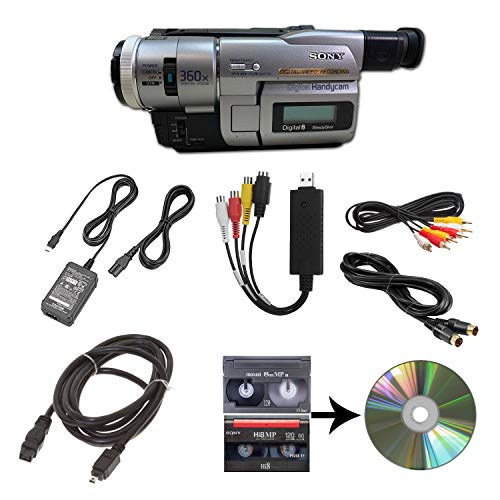
The included camcorder plays 8mm, Video8, Hi8, and Digital8 tapes and includes a USB capture device to move footage to computer files or burn to DVD. It comes with power supply, AV, and S-Video cables for transfer or TV playback. This option is best for buyers who want an all-in-one hardware solution with straightforward transfer to digital formats and immediate archival options.
Best for: Users with a mix of 8mm family tapes who prefer an integrated transfer setup. Limitation: requires existing tapes and may rely on bundled cables for playback quality.
ClearClick Video to Digital Converter 2.0
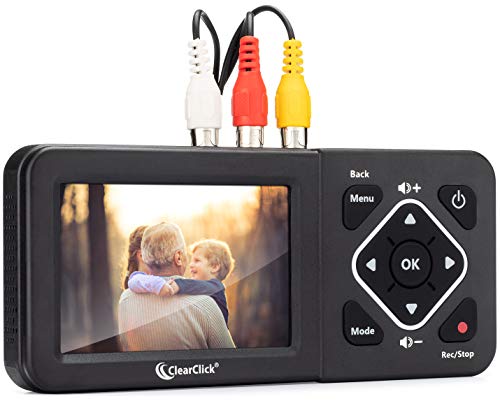
Converts old video tapes to digital with the press of a button, recording SD resolutions to USB flash drive or SD card. Compatible with VHS, VCRs, Hi8, camcorders, DVDs, and retro gaming systems. No computer or software required. A working VCR/camcorder and tapes are essential. This is ideal for customers who want a simple, stand-alone device without computer dependencies.
Best for: Quick digitization without a PC. Caution: Does not play tapes on its own; requires working equipment and tapes.
Sony Camcorder for miniDV Tape Transfer to Computer USB and DVD

This Sony model handles all miniDV tapes and uses a USB capture device to transfer footage to computer files or burn to DVD. It includes power, AV, and S-Video cables for easy transfer and playback. It suits users who specifically want reliable miniDV tape transfer with a familiar brand ecosystem.
Best for: MiniDV archiving with a dedicated transfer kit. Limitation: Focused on miniDV; other formats require different hardware.
Panasonic miniDV Camcorder Bundle w/ USB Adapter
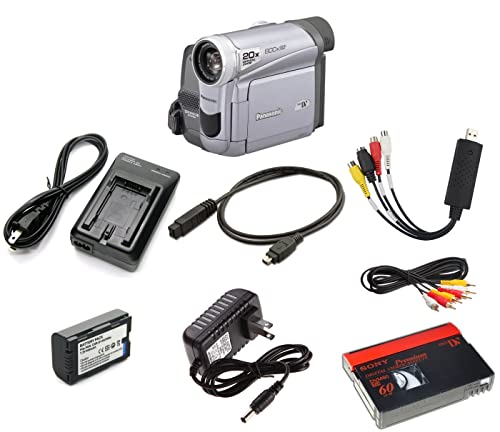
Panasonic offers a miniDV bundle designed for tape playback and digitization, with a USB capture device to transfer tapes to computer files or burn to DVD. The bundle includes a battery and AV cables for transfer or TV playback. Best for: Buyers who want a complete miniDV transfer setup with added portability for on-the-go use.
Limitation: May be heavier on the traditional miniDV workflow; newer digital formats could require newer adapters.
VHS to Digital Converter, Video Capture Card Device

This capture card converts analog video from VHS, VCR, Hi8, DV tapes to a PC or Mac via USB. It supports RCA to USB conversion and records without requiring an external sound card. Best for: Desktop digitization with a PC/Mac workflow. Limitation: Needs a computer and may require software setup.
Video Capture Card, USB Video Capture Device

Another VIXLW option, this device captures analog from VHS, MiniDV, Hi8, or DV sources via RCA/S-Video into USB, enabling easy PC/Mac transfer without specialized hardware. It emphasizes plug-and-play with automatic driver recognition. Best for: Users who want a straightforward, budget-friendly USB capture path. Limitation: May not upscale video quality beyond 720p in some configurations.
VHS to Digital Converter with 4″ HD Screen

This converter combines a 4″ LCD preview screen with USB/TF storage and HDMI output for easy shared viewing. It supports conversion to 1080P and works with VHS, VCR, MiniDV, and Camcorders. Best for: People who want on-device viewing and limited computer use. Limitation: Cannot play tapes independently; requires a source player.
ClearClick Video to Digital Converter 3.0

ClearClick’s third-generation converter digitizes video and audio from VHS, camcorders, Hi8, DVDs, turntables, and cassette tapes. It records directly to USB flash drives or MicroSD cards. Important: A working VCR/camcorder and tapes are required. Best for: Multi-format archiving with both video and audio capture. Limitation: Does not upscale to HD and does not work with modern HDMI sources alone.
Buying Guide: Key Purchase Considerations
What formats do you need to digitize? If your library includes 8mm, Hi8, and Digital8, choose a solution that supports multiple camcorder formats. For pure miniDV archives, a dedicated miniDV transfer kit may be simplest. Do you prefer a standalone device or PC-based workflow? Standalone converters offer simple transfers without a computer, while capture cards or USB devices provide flexible editing on a PC/Mac.
How important is a built-in preview or LCD? Some models include an LCD screen for on-device viewing and quick checks, which helps verify playback before recording. If you plan to digitize many tapes, a model with reliable USB or SD card recording is advantageous.
Is battery life or power supply a factor? Bundled power adapters and batteries add portability and reduce setup complexity, making a difference for on-site transfers or when outlets are scarce.
What storage and file formats do you want? Look for devices that record to common formats (MP4, WAV/MP3) and support USB drives or SD cards of sufficient capacity. Ensure your computer can read the resulting files and that the supported resolutions meet your archival needs.
Compatibility and condition of tapes matter. A working VCR/camcorder is essential for many converters. If your tapes are degraded, consider devices that advertise stable playback and reliable transfer to minimize re-recording attempts.
Frequently Asked Questions
- What’s the simplest way to digitize old tapes? Use a standalone video converter that records directly to USB or SD card without a computer.
- Do I need a computer to transfer tapes with a capture card? Yes, capture cards typically require a PC or Mac to process and save video files.
- Can these devices handle Hi8 and Digital8 tapes? Some models support multiple formats like 8mm, Hi8, Digital8, and MiniDV; check each product’s format coverage.
- Will the transferred video be HD? Most consumer devices digitize to standard resolutions like 720×480 or 1080P depending on the model; not all support HD upscaling.
- What if my tapes don’t play? A working camcorder or VCR is usually required; most devices don’t fix physical tape playback issues.
- Are there risks to the original tapes during transfer? Use devices designed for gentle playback and avoid rewinding tapes too aggressively to reduce wear.