Yes—these scanners convert slides and film into clear digital JPEGs, making it easy to preserve memories. This guide highlights five reliable options ideal for different needs, from casual family archiving to more robust digitization projects.
| Product | Best For | Notes |
|---|---|---|
| KODAK Slide N SCAN | All-in-one family memories | 5” LCD, supports 135/126/110 film and slides |
| Magnasonic All-in-One 24MP | High-quality scans with options to view on TV | Built-in memory, HDMI output |
| DigitPro 22MP Film & Slide Scanner (35mm/135) | Standalone, simple archiving | 5” LCD, 128MB internal memory |
| 22MP Photo and Slide Scanner (DigitConvert) | Versatile for photos and slides | 4GB SD included, 128MB internal memory |
| DIGITNOW! 135 Film Negative Scanner | Budget-friendly quick digitizing | Standalone with rapid feeder |
KODAK Slide N SCAN Film & Slide Scanner
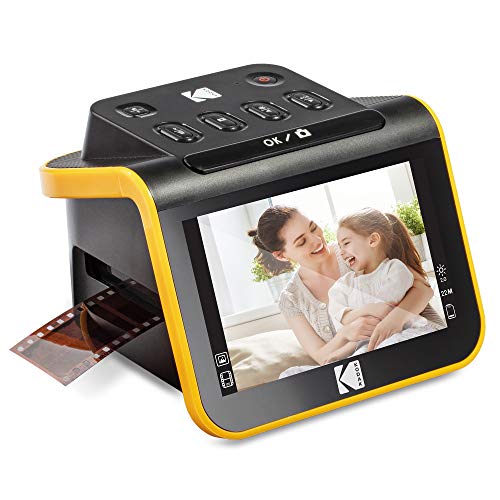
The Kodak model is an all-in-one film and slide digitizer with a built-in 5-inch LCD for direct viewing and editing. It supports 135, 126, and 110 film formats and slides, saving directly to an SD card (not included). Best for casual collectors who want a ready-to-use device with a gallery-style screen for quick previews and sharing. A potential limitation is SD card capacity; users should choose a larger capacity card if archiving many images. The included slide holder and adapters help streamline loading for faster scanning.
Magnasonic All-in-One 24MP Film Scanner

Magnasonic’s scanner offers a 5-inch LCD display for direct viewing and supports 35mm, 126, 110, and Super 8 film, plus 135/126/110 slides. It includes built-in memory and an SD card slot for expansive storage. Best for users seeking a compact, standalone device with the option to connect to a TV or monitor via HDMI for larger viewing. A caution: HDMI cables are not included, so you’ll need to source one separately if you plan to view on a TV.
35mm Film & Slide Scanner With 2.4″ LCD

This DigitPro device is an all-in-one scanner that handles 135 negatives and slides, plus 50mm slides, with a built-in 5-inch LCD and one-touch scanning. It can save to the internal memory or an SD card (up to 64GB, FAT32/EXFAT). Best for users who want a straightforward, standalone solution for frequent digitizing without a computer. A limitation is the 128MB internal memory, which may require more frequent SD card use for large libraries.
22MP Photo and Slide Scanner (DigitConvert)

DigitConvert offers a versatile all-in-one scanning solution for 35mm/135 negatives and slides as well as physical photos. It captures 22MP JPEGs and includes a 4GB SD card with 128MB internal memory. Best for households digitizing mixed media—photos and slides—with rapid scanning, and a standalone operation that does not require a computer. Choose this if you want broad compatibility and a compact, efficient workflow. A potential trade-off is smaller internal memory; rely on the SD card for larger projects.
DIGITNOW! 135 Film Negative Scanner

DIGITNOW! focuses on 135 film negatives and slides, with a 1800DPI resolution and a quick-feeder that supports continuous loading. It saves to an SD card (up to 32GB) or a computer via USB 2.0. Best for budget-conscious users who want a simple, standalone device with a rapid slide feeder. Limitation: lower optical resolution compared to some newer models, which may affect overly detailed archival needs.
Buying Guide: Key Considerations For Choosing A Slide-To-Digital Converter
What formats do you need to scan?
Consider whether you primarily digitize 35mm negatives and slides, or if you also need to handle 110/126 formats and 50mm slides. A device that supports multiple formats saves time and reduces the need for adapters.
Do you prefer standalone operation or computer-based workflows?
Standalone scanners work without a PC, saving time and avoiding driver issues. If you want advanced editing or batch processing, a model with PC connectivity may be preferable.
How important is a built-in display?
A large LCD helps preview images before saving, preventing wasted scans. It’s especially useful for quick archiving or sharing from the device itself.
What about storage options?
Check internal memory and SD card capacity. Larger cards (up to 64GB or 128GB) are ideal for big archives. Some devices include SD cards; others do not.
How easy is loading and feeding slides?
Fast-loading feeders reduce scanning time for large collections. If you have many framed or thick slides, confirm compatibility with your slide thickness.
Image quality expectations
Look for megapixel ratings and sensor performance. Higher MP (18–24MP+) generally yields sharper digital files, though consider the device’s compression and software options as well.
Maintenance and ease of use
Consider whether you’ll need cleaning tools, included adapters, or cleaning brushes. Simple, intuitive interfaces are helpful for users new to digital archiving.
Frequently Asked Questions
- Which option is best for a beginner? A model with a simple, standalone design, built-in LCD, and straightforward one-touch scanning is ideal for beginners. Look for products labeled as all-in-one or easy-load feeders.
- Can I scan 35mm negatives and slides at the same time? Yes, most multi-format scanners support both. Verify format compatibility in the product features before purchasing.
- Do these devices require a computer? Many of these are standalone but can also save to internal memory or SD cards, or connect to a TV via HDMI for viewing. Check the specific model’s connectivity options.
- What storage should I buy with the scanner? If not included, buy a high-capacity SD/SDHC/SDXC card (32GB–128GB) to handle large archives. Ensure compatibility with FAT32/ExFAT as needed.
- Will the scans be print-ready for photo albums? Most devices produce JPEGs suitable for standard home printing, but print resolution needs depend on the original film quality and the device’s native resolution.
- How do I maintain image quality during archiving? Keep slides clean before scanning, store digital files in organized folders, and back up to an external drive or cloud storage for long-term preservation.