Looking to convert old film, slides, and VHS tapes to digital USB formats? This guide highlights five reliable film-to-USB conversion options suited for different needs. Whether you’re digitizing 8mm reels, 35mm slides, or analog video, these devices connect via USB and deliver ready-to-save digital files. The best picks target quick standalone scanning, PC-based capture, or flexible playback on TVs. Each choice explains who it’s best for and why, with clear trade-offs to help you decide.
Summary table of selected products
| Product | Best For | Key Advantage | Ideal Use |
|---|---|---|---|
| Oassuose VHS to Digital Converter | Families with VHS/VCR tapes | 1080P capture via USB-A/USB-C | Digitizing home recordings |
| TCNEWCL USB Audio Video Converter | Multi-source analog video | NTSC/PAL support, plug-and-play USB 2.0 | Legacy video to PC |
| KODAK Slide N SCAN Film & Slide Scanner | 35mm negatives/slides | 5” LCD, direct SD card save | Archiving old slides |
| DigitPro 2.4″ LCD Film Scanner (35mm) | Standalone 35mm film scanner | Built-in LCD, no PC needed | On-device scanning |
| 8mm & Super 8 Film to Digital Converter (eyesen) | 8mm/Super 8 reels | 2.4″ display, supports reels up to 9″ | Reel-to-digital in one go |
Oassuose VHS to Digital Converter
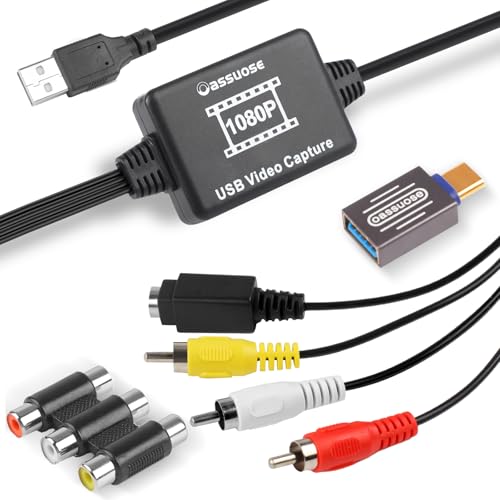
The Oassuose device converts analog video and audio from VHS, VCR, HI8, and related sources to high-definition 1080P at 30fps via USB-A or USB-C. It supports RCA or S-Video inputs for capture to PC or Mac with the supplied acquisition software. This makes it ideal for households digitizing old tapes for family archives. It is plug-and-play and requires no driver installation, simplifying setup for non-technical users. A potential limitation is reliance on compatible software for the actual capture process.
Best for: Families preserving aging VHS tapes and camcorder footage. Why: Broad tape compatibility, straightforward USB output, and 1080P capture meet common home-digital needs. Caution: Ensure your computer’s software supports the included acquisition program.
TCNEWCL USB Audio Video Converter

This USB video capture adapter links a PC to almost any analog video source via RCA or S-Video. It handles NTSC, SECAM, PAL, and PAL/60, making it flexible for international archives. It also supports capturing from LP and audio cassettes and offers brightness/contrast controls and a plug-and-play USB 2.0 interface. Note that it captures audio through software, so check your system’s configuration for optimal results.
Best for: Users digitizing diverse legacy video and audio formats. Why: Wide compatibility and PC-based control provide precise capture options. Caution: Make sure your software setup supports the capture workflow.
KODAK Slide N SCAN Film & Slide Scanner
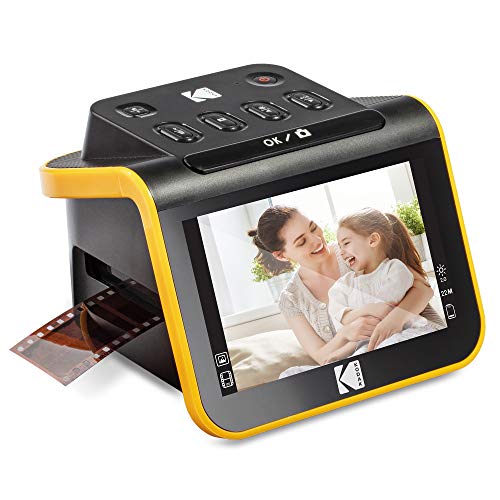
The Kodak Slide N Scan is a standalone 5” film scanner with a built-in LCD and SD card storage. It converts 135, 126, and 110 film and slides into high-resolution JPEGs, saving directly to SD cards. It’s best for quick, computer-free digitizing and archiving. The large display supports instant preview, and the device includes adapters and cables for easy setup. A limitation is that it relies on SD card storage and may require manual feeding for large batches.
Best for: Quick archiving of 35mm slides and negatives without a computer. Why: Standalone operation and immediate preview simplify small-scale projects. Caution: SD card capacity and media format compatibility should be checked before large transfers.
DigitPro 35mm Film Scanner (2.4″ LCD)

DigitPro’s 2.4-inch LCD film scanner is a standalone device designed to convert 35mm negatives and slides into JPEGs without a computer. It supports 135, 126, and 110 formats, and offers a fast slide feeder for continuous loading. The device stores output on its internal memory or a connected SD card. It’s best for users who want a PC-free workflow and quick, portable scanning. A potential limitation is lower maximum resolution compared to some high-end scanners.
Best for: Home archivists who prefer an all-in-one, PC-free workflow. Why: Built-in display and quick-feeder design streamline small batches. Caution: For large archives, consider a higher-resolution option or PC-assisted workflow.
DigitPro Film And Slide Scanner

This all-in-one scanner digitizes 35mm, 126, and 110 film, negates the need for a computer with its built-in memory and SD card support (up to 64GB). It also handles 50mm slides and includes Quick-Load adapters. Output is JPEG, saved to internal storage or SD. It’s best for those collecting mixed formats who want a simple, centralized device. Limitation: The internal memory is modest, so larger scans may require SD storage expansion.
Best for: Mixed-format archival projects with minimal computer setup. Why: All-in-one design reduces setup complexity. Caution: Manage storage capacity for larger scans and collections.
Buying Guide
What should you look for in a film-to-USB converter?
- Source compatibility: Verify the device supports your tape format (VHS, Hi8, DV), slide/film sizes (35mm, 126, 110), or 8mm/Super 8 reels.
- Output options: Decide between standalone USB (PC-free), USB capture to a computer, or SD card storage for direct playback on TVs or computers.
- Resolution and color: Higher resolutions (1080p) preserve detail; color accuracy matters for family photos and old film stock.
- Ease of use: Plug-and-play devices are better for non-technical users; consider built-in LCDs or simple interfaces for quick previews.
- Storage and transfer: Check supported SD card sizes and file formats (JPEG/MP4/MP3) to match your backup plans.
- Software compatibility: If capturing to a PC, ensure your software is compatible with your operating system and supports audio capture if needed.
How to plan your digitization workflow
- Sort media by format and condition; repair or improvise with cleaning supplies to reduce dust in scans.
- Test one or two items first to gauge quality and workflow before processing the entire collection.
- Back up digital files in at least two locations to prevent data loss.
- Label and organize digital files with consistent naming (date, format, source) for easy retrieval.
Pros and cons by use case
- Best overall for home video chaos: Oassuose VHS to Digital Converter — wide tape support, simple USB output, good for family recordings.
- Best for diverse analog sources: TCNEWCL USB Audio Video Converter — handles multiple formats and controls; best when you have varied devices.
- Simplest slide legacy: KODAK Slide N SCAN — standalone, immediate previews, SD card storage; ideal for quick archiving of slides.
- Standalone 35mm scanning: DigitPro 2.4″ LCD — no computer needed; great for quick single-session digitization.
- 8mm/Super 8 reels: eyesen 8mm & Super 8 Film to Digital Converter — supports long reels, direct-to-digital with built-in display.
FAQ
- What is the best option to convert VHS tapes to USB?
- Do I need a computer to use these devices?
- Will these convert 8mm or Super 8 films?
- What formats will I get after digitizing?
- Is color or resolution important for archival projects?
- How should I store digital copies?
The Oassuose VHS to Digital Converter is designed for VHS and other analog video sources with USB output, making it a practical all-in-one choice for family tapes.
Some devices are standalone and store data on SD cards or provide on-device previews, while others connect to a PC for capture and editing. Choose based on whether you prefer PC-assisted workflows or PC-free operation.
Yes, several options support 8mm and Super 8 reels, including eyesen’s 8mm & Super 8 converter, which is built for reel-to-digital digitization.
Most devices output JPEG images for slides/negatives or MP4/MP3/WAV for video and audio captures, depending on the model and input source.
Higher resolution helps preserve detail; color accuracy matters for preserving original appearance. Choose devices with 1080P or higher output when possible.
Back up to at least two locations (external drive and cloud) and organize with a clear naming convention to simplify retrieval in the future.