Choosing a USB camera to HDMI converter hinges on compatibility, ease of use, and output quality. This guide highlights five reliable options ideal for live streaming, monitoring, or classroom setups. The best fits include those that offer plug-and-play operation, clear 1080p output, and direct HDMI connectivity. The chosen products cater to hobbyists, streamers, educators, and professionals who want a simple way to display camera feeds on HDMI displays or capture devices without heavy software. Below is a quick summary table to compare key points at a glance.
- Best for quick plug-and-play streaming from USB cameras
- Better for MJPEG cameras and simple HDMI capture
- Choose this if you need reliable 1080p output with minimal setup
| Product | Output | Key Note | Best For |
|---|---|---|---|
| SZXLCOM USB to HDMI Adapter (MJPEG) | 1080p60 | MJPEG only; UVC to HDMI | UVC webcams with MJPEG support |
| SZXLCOM UVC to HDMI Converter | 1080p60 | MJPEG only; no H.264/H.265 | Live streaming with MJPEG UVC cameras |
| Rybozen Capture Card | 1080p60; 4K input | HDMI to USB 3.0 | Studio streaming, OBS, consoles |
| OBSBOT UVC to HDMI Adapter | 4K@30fps / 1080p@60fps | Plug and play; low latency | OBSOB-compatible webcams and multi-device setups |
| J-Tech Digital UVC to HDMI Converter | Up to 4K30/1080p | On-screen controls via USB mouse | Professional streaming and presentations |
SZXLCOM USB to HDMI Adapter for UVC Cameras

The SZXLCOM adapter converts compatible MJPEG UVC USB cameras into an HDMI output for monitors, switchers, encoders, and streaming setups. It delivers 1080p60 with embedded UAC audio over a single HDMI connection. It is plug-and-play—no computer or drivers required. Best for users with MJPEG UVC cameras who want a straightforward, real-time video path to HDMI displays.
Best for users who own MJPEG UVC cameras and want a simple HDMI feed. Limitations: not compatible with H.264/H.265 or non-MJPEG formats.
SZXLCOM UVC to HDMI Converter 1080P 60Hz

This device turns compatible UVC USB cameras into clean HDMI outputs with plug-and-play setup. It supports MJPEG cameras and offers 1080p60 with low latency for streaming and monitoring. Orientation switching is available on supported devices, and it connects directly to monitors, switchers, or capture cards. Best for MJPEG-only UVC cameras in professional or educational streaming workflows. Caution: not compatible with YUY2/YUYV, NV12/NV21, RGB, or H.264/H.265.
Rybozen Capture Card
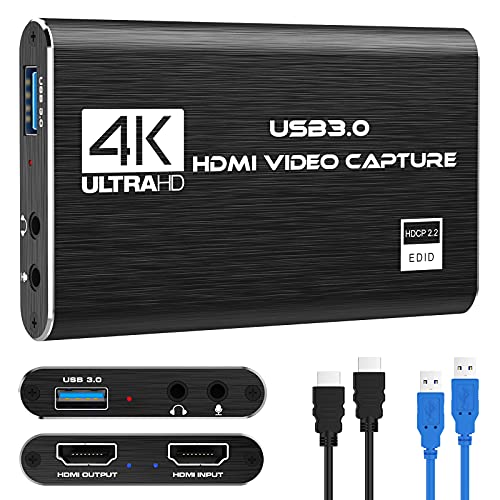
This 1080p60 capture card provides an HDMI input to USB 3.0 output, suitable for streaming from consoles, cameras, or PCs to software like OBS. It supports 4K input signals but outputs up to 2K or 1080p depending on source. It is plug-and-play with USB 3.0. Best for users who need reliable capture for gaming, live streaming, or screen sharing with minimal CPU load. Limitation: 4K input does not guarantee 4K output.
OBSBOT UVC to HDMI Adapter 2.0
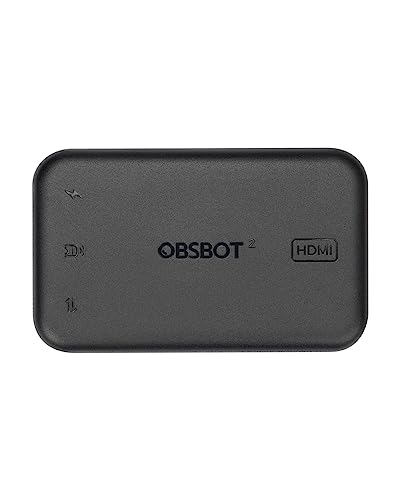
The OBSBOT UVC to HDMI adapter supports up to 4K@30fps or 1080p@60fps and offers plug-and-play operation with OBSBOT webcams or other UVC devices. It provides low latency for real-time monitoring and streaming. Best for users who want high-resolution HDMI output from OBSBOT devices or other UVC cameras without software installation. Limitation: ensure your camera supports UVC for on-device compatibility.
J-Tech Digital UVC to HDMI Converter

The J-Tech Digital converter provides UVC to HDMI real-time conversion with up to 4K30 output and on-screen controls via a USB mouse. It supports continuous power for extended shoots, making it suitable for live streaming, security monitoring, and presentations. Best for professionals who want on-device control and high-resolution output. Limitation: on-screen control requires a compatible USB mouse and UVC camera with supporting features.
Buying Guide: Key Purchase Considerations
What output resolution do you need? If you require 4K, ensure the device supports 4K30/60 on input and 1080p or 2K output as appropriate. If you only need 1080p, verify the device explicitly lists 1080p60 or 1080p30 as supported.
Is your camera’s format MJPEG or H.264/H.265? Some converters work only with MJPEG; others explicitly deny non-MJPEG formats. Check compatibility before buying.
Plug-and-play vs. driver-based: Plug-and-play devices are ideal for quick setups and portable workflows. If a driver installation is required, plan for potential OS compatibility and future driver updates.
Latency and real-time use: For streaming and live displays, look for low-latency HDMI output and minimal processing delay. Some units advertise low latency but may vary by camera and USB bandwidth.
Power delivery: Some adapters provide power passthrough to the camera or device, enabling longer sessions. If uninterrupted operation is essential, choose a model with power delivery support.
Compatibility with display devices: Consider whether you’re connecting to monitors, TVs, capture cards, or ATEM devices. Some devices offer smoother performance with certain capture workflows or software ecosystems.
FAQ
- Will these convert a USB webcam to HDMI without a computer? Yes, most listed models are plug-and-play and do not require a PC, as long as the webcam is UVC-compatible and MJPEG-based (when specified).
- Can I use 4K with these adapters? Some support 4K input or output at 30fps, but many target 1080p as the standard. Check the product’s exact 4K capabilities before purchasing.
- Do I need drivers for these converters? Many are driver-free, but a few may require initial driver installation or camera charging features to function correctly. Review the product notes.
- Are these suitable for gaming capture? Yes, capture cards like Rybozen are designed for streaming and recording from consoles or cameras, often with USB 3.0 for low latency.
- What if my camera uses H.265? If the camera outputs H.265, some adapters may not support it. Look for devices that explicitly support your camera’s format or use a camera setting to switch to MJPEG if available.
- Can I connect multiple displays at once? Many adapters are single-output HDMI devices. For multiple displays, consider a compatible HDMI splitter or a capture card setup that supports multiple streams.